November 6, 2026
Google Business Profile Verification: How to Pass the Video the First Time
Google Business Profile verification, step by step: what to fix first, exactly what to film in one take, how long it takes and how to fix a failed video.
Part of our guide: google business profile for contractors
TL;DR: Google Business Profile verification is the step that turns a new profile into a live one. For many home service businesses, that means a short, live video. Treat it like a test you can prepare for. Match your details everywhere first. Film street signs, tools and proof you’re in charge in one take. Then wait up to 5 business days. If it fails, read the reasons before you retake it.
Every owner wants the same thing from a new Google Business Profile: a live pin on the map and a phone that rings. Verification is the gate between you and that.
It’s also where a lot of new profiles stall. An owner gets the prompt on a job site, pans a phone around the truck for a few seconds and hits submit. The rejection comes, they shoot the same video again, and their options start to shrink.
Here’s the good news. The video is a test with a published answer key. Google tells you what it wants to see. Know the list, walk your route once, film it in one take, and you hand Google what it needs to put your profile live.
This post is the whole playbook: how the process works, what to fix first, what to film, how long it takes, how to recover from a failure and what to do the moment you pass. This is part of our guide to Google Business Profile for contractors.
How does Google Business Profile verification work in 2026?
Google Business Profile verification works by having you prove your business is real and that you’re allowed to manage it, using whichever method Google offers your profile, which for many new home service profiles is a short live video filmed on your phone.
You don’t get to pick. Google chooses the method, and a Product Expert guide in Google’s community says the options depend on your business category, location and other factors. In some cases, Google verifies a profile instantly.
| Method | What happens | Who usually sees it |
|---|---|---|
| Video recording | You film live through your profile, and Google reviews the clip | Many new profiles |
| Phone, text or email code | Google sends a code, and you enter it | Some profiles |
| Live video call | A Google rep checks your business in real time over Google Meet | Some profiles, and owners working with support after a failed video |
| Postcard | A code comes in the mail | Some profiles |
| Bulk | One request covers many locations | 10 or more locations, not service-area businesses |
If you get a code, leave the profile alone until you’ve used it. Google’s help page says editing your name, address or category after you request a code can stop it from working, and requesting a new code cancels the one already in the mail.
What should you fix before you hit record?
Before you hit record, make your business name, phone number, service area and website match everywhere, set up your address the way Google’s rules ask, and sign in with a company email. Clean details let your video confirm what Google already sees, instead of raising new questions.
Most guides jump straight to filming. This is the part that saves you a retake:
- Your name. Use the name on your trucks and paperwork. Google’s guidelines say extra information in your name can get your profile suspended. Platinum Product Expert Claudia Tomina wrote in Search Engine Land that during her own live call, the agent had her change a keyword-stuffed name to match her documents. She suspects mismatches trip up a lot of people.
- Your website. Search Engine Land’s service-area guide says to put a consistent name, phone, hours and service area on your site at least a week before you verify. Make your profile’s service area match your areas-served page.
- Your address. If customers don’t come to you, Google says to hide your address, and its example is a plumber working from home. Keep P.O. boxes, virtual offices and coworking addresses out of the address field.
- Your email. Sterling Sky advises using a company-domain address, not Gmail. That’s practitioner advice, not a Google rule, but it costs you nothing and it’s how we’d set up any profile anyway.
- Your second location. Opening another office? Sterling Sky says shared service territory is the most common reason a second location fails video verification. Take shared cities and ZIP codes off both profiles and give the new office its own phone number. Our guide to launching multiple Google Business Profiles covers the full setup, office by office.
What do you need to show in a video verification?
In a video verification, you need to show three things in one continuous take of at least 30 seconds: where your business operates, proof that it exists, such as your tools and equipment, and proof that you’re in charge, such as unlocking a branded van or showing a business document.
Those are Google’s own requirements. You film live on your phone through the profile, so you can’t record it ahead of time and upload it later. Here’s the shot list to use:
- Start on the street. Film a street sign, a nearby landmark or a neighboring business near your address. Working from home? Google says landmarks in your immediate neighborhood can do the job.
- Walk to the truck. Show the outside first. Search Engine Journal points to branded vehicles as good proof and a plain van as weak proof, so film your wrap, your magnets or your uniforms if you have them.
- Show the gear. Open up and move slowly across the tools you use on real jobs.
- Prove you’re in charge. Google’s own example is “unlocking a van that has your business branding.” Do it on camera, in one motion. Search Engine Land adds starting the vehicle as another option.
- Show a document. Google accepts a business permit, invoice or utility bill that matches the name on your profile. Hold it steady long enough to read the name.
- Keep it clean. Leave out other people’s faces and sensitive numbers like bank or tax IDs. Cover those numbers before you start.
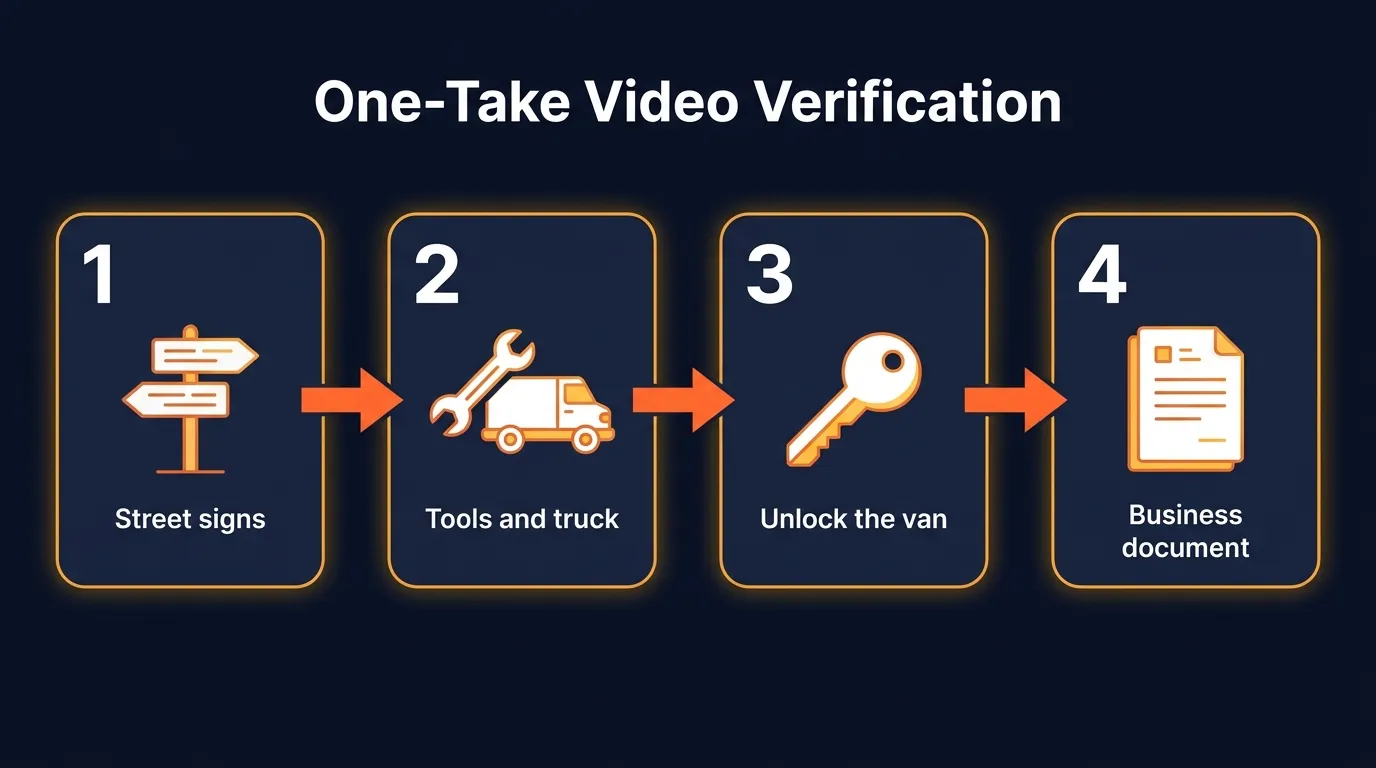 Four proofs, one take. Walk the route once before you press record.
What does that look like in your trade?
| Trade | Tools to film | Control to show |
|---|---|---|
| Plumber | Drain machine, pipe wrenches, van shelving | Unlock the van, show a recent invoice |
| HVAC company | Gauges, recovery machine, parts bins | Unlock the service van, show a permit |
| Roofer | Ladder rack, nail guns, tear-off tools | Unlock the trailer, show a roofing permit |
| Restoration company | Air movers, dehumidifiers, moisture meters | Unlock the equipment van, show a job invoice |
How long should it run? Thirty seconds is the minimum, not the goal. BrightLocal says videos of one to two minutes do best, so give yourself time to move slowly.
What about signs? If you have a wrapped van or a shop sign, film it. If you hide your address and don’t have signage, the experts in BrightLocal’s recap say you don’t need it. Lean harder on your tools and your document.
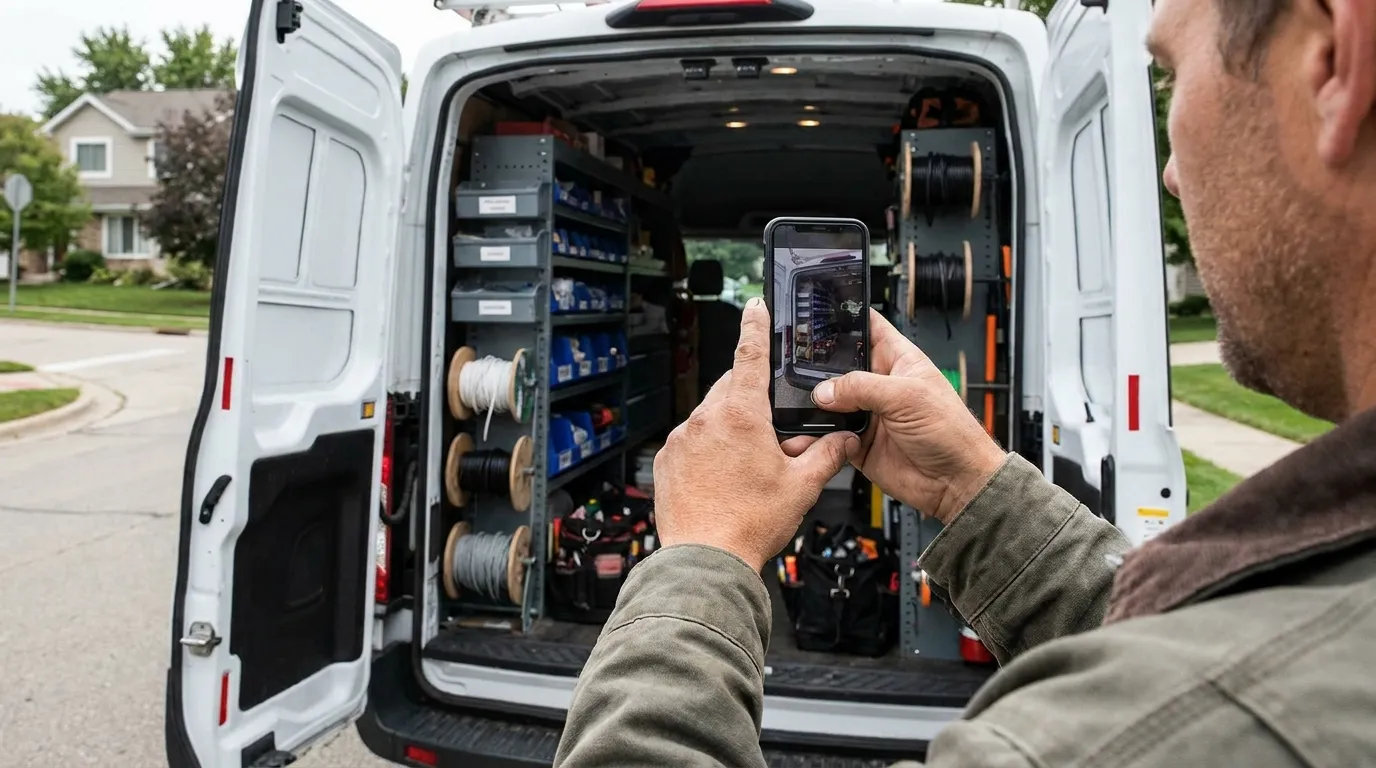 Slow pans and steady hands. The reviewer has to be able to see what you’re showing.
“I spent six years in the field as a restoration technician, and the proof of a real trade business is everywhere: the truck, the gear, the job paperwork. The rushed videos are the ones that miss it. I tell owners to treat this like a job walkthrough. Plan the route, know what has to be on camera, then shoot it once. A real business already has everything Google wants to see. You just have to put it in frame.” Santino Velci
How long does verification take?
Verification reviews take up to 5 business days once you submit your video, according to Google, and some profiles get verified instantly, so plan your launch around a full week and keep your profile details untouched while you wait. Check the status yourself instead of waiting on an email.
Two habits make this week go smoothly:
Hold your edits. Search Engine Roundtable reported a local Product Expert seeing more re-verifications after small changes, including to categories and phone numbers. Search Engine Land says major edits like a new name or address can trigger it too. Finish your edits before you film, then leave the profile alone during the review. The same goes after you pass: when you do need a big change, update your website first.
Check your profile every day. Sterling Sky recommends checking the profile in the Google Maps app daily, because rejection notices don’t always show up. A “Review issues” warning there will show you Google’s stated reasons.
Why do verifications fail, and how do you fix it?
Verifications usually fail because the video skipped a required proof, was cut or edited, or showed details that don’t match the profile, and the fix is to read Google’s stated reasons, correct that exact problem, and record one new take instead of repeating the same video.
You get real information when a video misses. Google’s help page says you can record a new video and that it will share why the first one wasn’t accepted. Search Engine Roundtable reported that the failure email points owners to a checklist: the surroundings should match the address, the business name should appear on permanent fixtures, and the person filming should show they’re authorized, like unlocking the entrance.
| What went wrong | How to fix it |
|---|---|
| Rejected for location | Start on a street sign or neighboring business near your address |
| Rejected for name | Match your profile name to your documents, then film the document or your branding |
| Rejected for control | Unlock something on camera and show a matching business document |
| Video had cuts or edits | Film one unbroken take, live, through your profile |
| Upload failed | Restart your phone and try again. Sterling Sky says a video of 60 to 90 seconds often gets through |
| Second location rejected | Remove overlapping service areas and give that office its own number |
Notice that a failed upload and a rejected video are two different problems. A failed upload never reached a reviewer, so fix your phone or connection and leave the plan alone.
Treat every take like it counts
Claudia Tomina’s Search Engine Land guide explains why this matters. After a few failed attempts, Google can show a “No More Ways to Verify” message. So never fire off a second video until you’ve fixed what the first one missed.
If you do see that message, here’s the path:
- Gather your proof. Photos of your signage and business documents, with a name that matches your profile.
- Contact support. Sterling Sky has a walkthrough for reaching Business Profile support.
- Prepare for a live call. Tomina says Google emails about a live video call after 2 to 3 business days. Have your van, tools and paperwork within reach, and fix any name mismatch first.
What should you do the moment a new profile is verified?
The moment a new profile is verified, finish every section, add your services and real job photos, publish a first post, and start sending every finished customer a review link. A verified profile starts earning calls once it gives Google and homeowners a reason to choose it.
You passed. Now use your momentum. Here’s the order:
- Fill out the profile. Services, hours, service areas and the right primary category.
- Upload real job photos. Search Engine Land recommends photos of your business doing the work.
- Start your reviews on day one. In Whitespark’s 2026 report, high star ratings, the number of Google reviews and how recent those reviews are all sit inside the top 11 map factors. Send a review link the same day each job wraps.
- Post weekly. A local job, a seasonal tune-up, a storm repair. Keep it real and keep it steady.
- Answer the phone. My uncle once lost an $80,000 job over one missed call, and a brand new profile can’t afford many of those.
- Match your listings. Put the same name, phone and page on Bing Places and Apple Business Connect. BrightLocal’s 2026 survey found 45% of consumers now use AI tools for local recommendations, and matching details help those tools confirm you’re real. That’s the idea behind how to show up in ChatGPT.
- Keep a record. Search Engine Land’s continuity plan suggests tracking your review count, rating, categories, photos and posts, so you can spot a problem fast.
Want calls while the map builds? Many owners run Local Services Ads for the same area at the same time. And your profile works harder with a site behind it, which is why local SEO for contractors is the natural next step.
Get your profile live, then make it pay
Verification is one short test. Prep your details, film your four proofs in one take, and you’re on to the part that brings in calls: reviews, photos, posts and pages that win your service area.
At Ignite Systems, we manage every Google Business Profile a business has, with services, categories, weekly posts and geotagged job photos, plus a steady flow of reviews from finished jobs. Nobody can honestly guarantee the number one spot, but we control the work, and you see every page, post, ranking and call.
Book a Strategy Call. We’ll pull up your business live and show you where it ranks today.